|
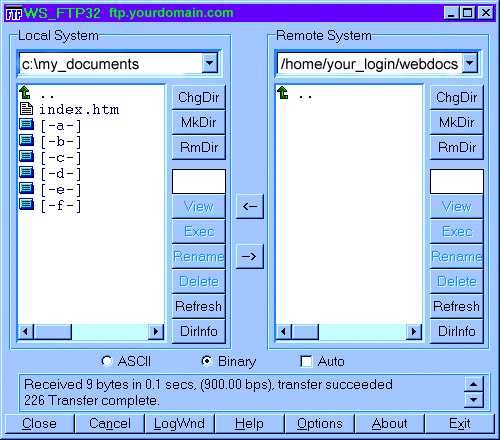
Once you've made the connection, you'll see two windows inside
the WS_FTP window. The one on the left represents the directories
and files on your computer, and the one on the right represents the
directories and files on VPOP's server. If you specified
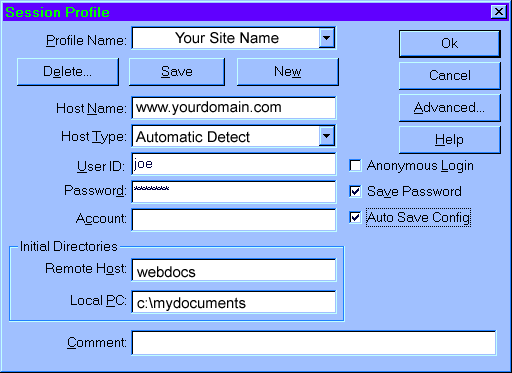
webdocs as the initial directory on the remote host, then you'll
be in that directory initially. If not, double-click on webdocs in the
right-hand directory window. Likewise, if you specified the directory
in which your html files reside, the proper directory will be displayed
on the left-hand side. If not, you can either click on the
directory, or use the left-hand ChgDir button and type in the
correct directory. Next, click on the ASCII radio button. Click once
on the index.htm file on the local (left) side to highlight it, and then on
the right-facing arrow. A dialog box should appear, and you should
then see the index.htm file appear copied onto the remote side.
Any image files you wish to display must be transferred as binary,
so click the Binary radio button, and then transfer the image files
in the same manner by highlighting and then clicking the right-facing
arrow. Speaking of image files (like GIF's or JPG's), it usually a
good idea to place those in a directory called images under
your webdocs directory. To do this, click on the MkDir
button on the upper right side of WS_FTP, when it prompts you
for a directory name, enter "images", and it will be created and will
show up as a folder in the upper right window of WS_FTP, you can then
double click on that folder to enter it.
|